
Create an account
Click Sign up at the top of the home page, enter your name, email and password, then confirm by email. Projects are saved to the cloud so you can open them on any computer.
Roomcraft works best in a recent Chrome, Edge, Safari or Firefox on a computer with WebGL. A dedicated graphics card makes large rooms and renders smoother.
Create your first project
- 1After signing in, go to Your projects.
- 2Click Create new project to start from an empty plan, or pick a sample room (living room, bedroom, L-shaped kitchen, bathroom) to start with walls and furniture in place.
- 3The editor opens. To rename the project, edit the name box at the top left.
Every change is saved automatically; the save status shows in the top bar.
On the projects page, each card's menu lets you rename, duplicate, open in a new tab or delete a project.
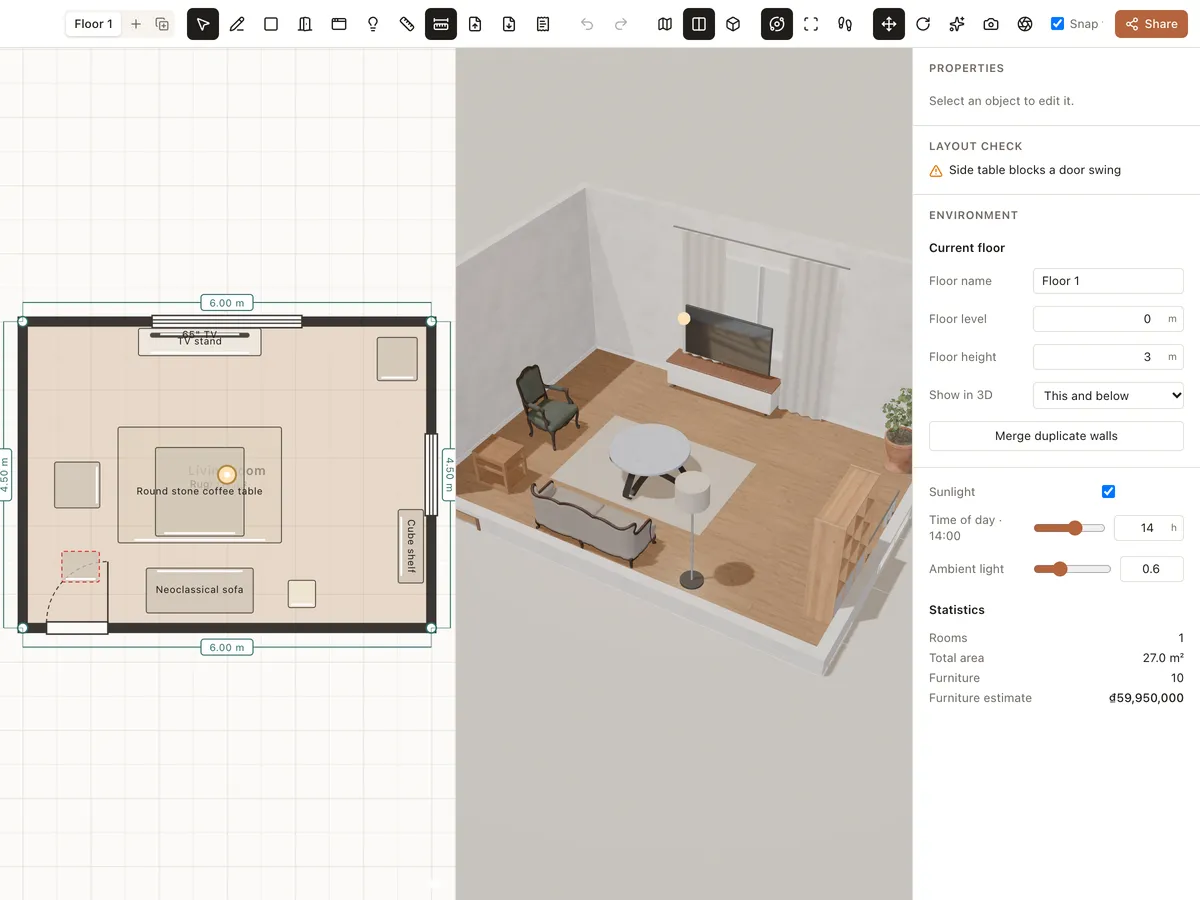
Parts of the editor
Use the Plan, 2D + 3D and 3D buttons in the toolbar to choose how the screen is split.
| Area | What it's for |
|---|---|
| Toolbar (top) | Floors, drawing tools, drawing import, plan export, quote, undo, layout and camera, render, sharing. |
| Library (left) | Three tabs, Built-in, Design and Mine: find furniture and add it to the room. |
| 2D plan | Draw walls, rooms and openings; place and align furniture from above. |
| 3D view | See the room as it really looks: orbit, look from the top or walk through. |
| Right panel | Properties, Comments and Versions tabs, with Layout check and Environment below. |
Selecting and undoing
Click any wall, room, opening or piece of furniture to select it; the Properties panel shows its settings. Esc clears the selection and returns to the Select tool.
Ctrl + Z undoes, Ctrl + Shift + Z (or Ctrl + Y) redoes. On a Mac use ⌘ instead of Ctrl.