
Three cameras
| Camera | How to use it |
|---|---|
| Orbit | Drag to rotate, scroll to zoom. |
| Top | Look straight down to see the whole layout in 3D. |
| Walk | Click the 3D view, W A S D to walk, the mouse to look around, Esc to exit. |
Open doors, drawers and lamps
Press H (or the Interact button) and click a cabinet door, drawer, lamp or curtain to open it, pull it out, switch it or draw it. Ceiling fans spin on their own.
While walking, click or press E to operate whatever is under the crosshair. The interact bar has a Close all button.
Open and closed states are only for viewing; they don't change the saved design.
Take a screenshot
The Screenshot button in the toolbar saves the current 3D view as an image, handy for sending to clients or family.
Photoreal render
- 1Move the camera to the room's best angle.
- 2Click Photoreal render and choose a quality: Fast (128 samples), Good (512 samples) or Best (1024 samples).
- 3Click Start. The image sharpens as it goes; click Stop & keep at any time, then Download.
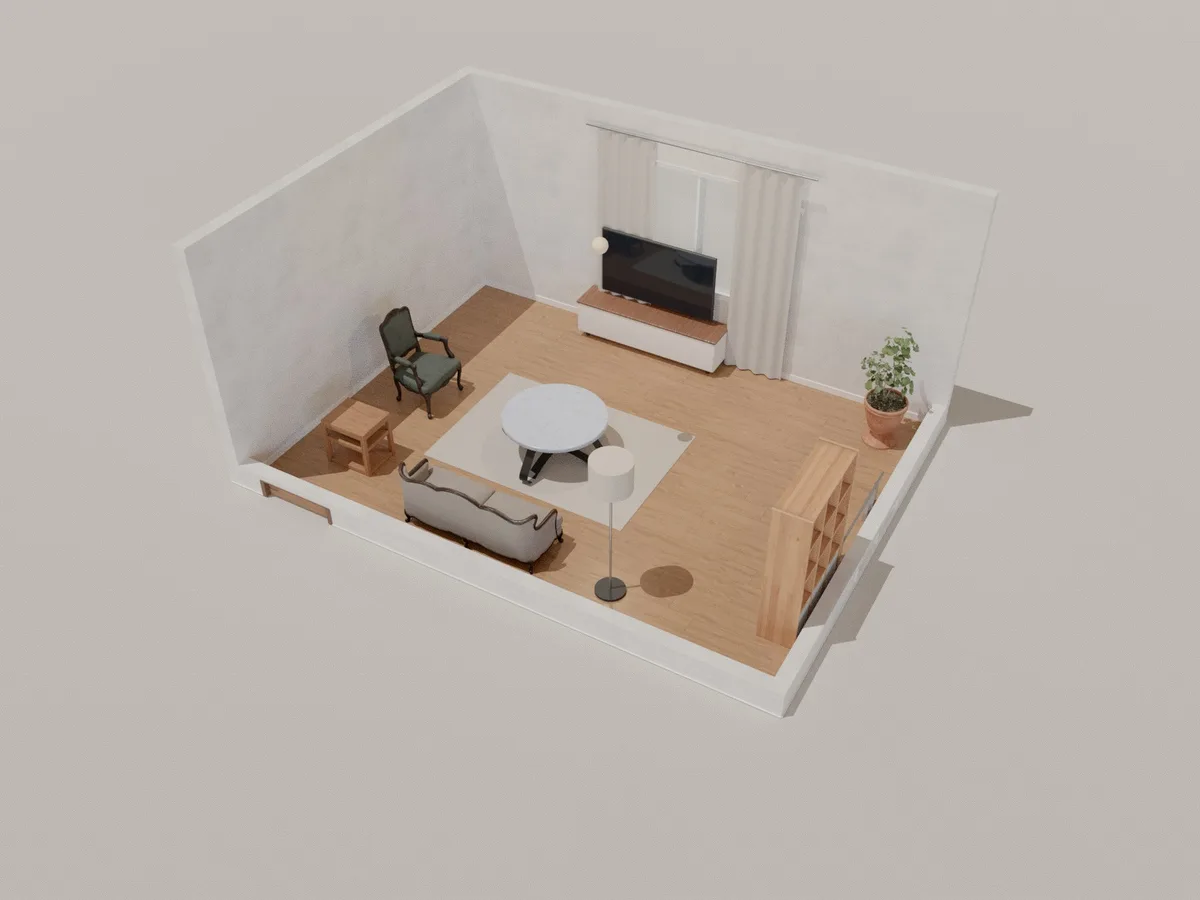
The camera is locked while rendering. It takes from about 20 seconds to a few minutes depending on your graphics card.